Form 8621 Calculator – DIY Calculation Workflow
(Step-by-Step CSV → Mapping → Output for PFIC §1291 / §1296)
PFIC.xyz provides mechanical computation based solely on user-confirmed inputs.
No tax advice, filing guidance, legal interpretation, or compliance determination is provided. All filing decisions, tax positions, representations, and signatures remain solely with the taxpayer.

This video demonstrates the Form 8621 calculator quick-start workflow, including CSV preparation, transaction mapping, and Excel output review.
Video: PFIC §1291 Calculation Workflow
0 Prerequisites & Scope
Context: This page focuses on the calculation workflow only. It serves as the quick-start documentation for the Form 8621 calculator, including CSV preparation and transaction mapping. For scope, responsibility boundaries, and verification methodology, see the User Guide.
This workflow applies when the filer has selected a PFIC calculation method (§1291 default or §1296 MTM, as applicable) and is preparing data for mechanical computation.
- The calculation method is identified (§1291 default or §1296 MTM).
- The complete transaction history for the PFIC is available.
- Transactions can be represented using standard purchase, disposition, distribution, or reinvestment events.
1 Prepare Transaction CSV Data
The CSV file is the only input required for the calculation. It must contain your complete transaction history.
Required CSV Columns
Column names must match exactly:
- Date: Transaction date (YYYY-MM-DD format)
- Details: Description (e.g., "Purchase", "Sale", "Distribution")
- Units: Number of shares/units
- Value: Transaction amount in original currency
Example CSV Format
| Date | Details | Units | Value |
|---|---|---|---|
| 2020-03-05 | Purchase | 1000 | 5000.00 |
| 2021-06-15 | Distribution | 0 | 200.00 |
| 2022-05-10 | Sale | -200 | -1200.00 |
📈 1296 MTM: CSV Preparation & FMV Row Rules
Section 1296 Mark-to-Market (MTM) calculations require annual Fair Market Value (FMV) inputs in addition to transactions. Follow these specific rules:
| Date | Details | Units | Value |
|---|---|---|---|
| 2020-03-05 | Contribution | 10000 | 15000 |
| 2021-05-15 | Sold | -12.433 | -29.68 |
| 2022-03-12 | Reinvestment | 19.08384 | 22.83 |
| 2023-12-31 | fmv | 10068.813 | 20018.53 |
| 2024-12-31 | fmv | 10068.813 | 17079.56 |
Additional rules for MTM:
- MTM calculations require at least one FMV row for each tax year — from the first MTM year through the filing tax year.
- FMV rows must appear at the end of the transaction list, one row per calendar year (typically Dec 31).
- The Details field must be exactly: fmv (lowercase).
- Each FMV row must include total units held at year-end and year-end FMV in original currency.
- Date must be
YYYY-MM-DD - Sales/Dispositions use negative Units
- Empty cells are not allowed. Use 0 only when the economic amount is truly zero.
- One PFIC = One CSV (full history required)
💡 Guidance: Forcing Excel to ISO Date (YYYY-MM-DD)
Excel often auto-converts dates when saving CSV files. To ensure compliance:
- Select the Date column in Excel.
- Right-click → Format Cells.
- Choose Custom and type:
yyyy-mm-dd - Save as CSV UTF-8 (Comma delimited).
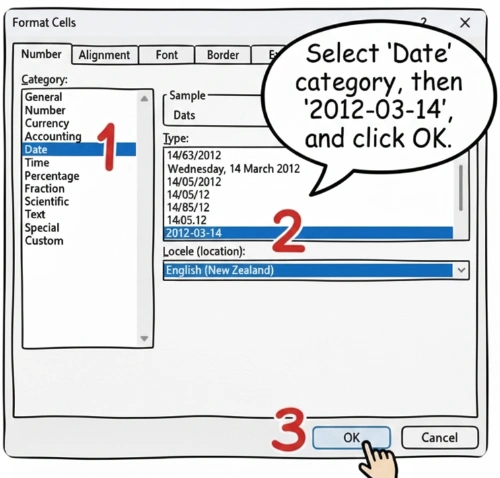
YYYY-MM-DD format before uploading. Recommended: Set Date column format explicitly in Excel before saving as UTF-8 CSV.
Currency Handling
Enter amounts in the original currency. Do not pre-convert to USD. The calculator will handle FX conversion automatically using daily spot rates.
2 Upload CSV File
The workflow begins with uploading your prepared CSV file to the calculator.
- Navigate to the Homepage
- Click the file upload area or drag-and-drop your CSV file
- The system will validate the file format and column structure
3 Transaction Type Mapping (Most Critical Step)
The system performs mechanical computations based strictly on user-confirmed inputs and classifications. Every transaction must be manually confirmed. Mapping informs the FIFO logic and excess distribution calculations.
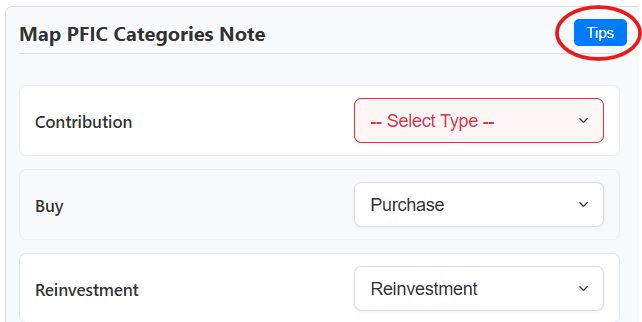
Quick Decision Logic
| Units | Value | Description (what it says on the statement) | Type |
|---|---|---|---|
| > 0 | > 0 | Buy / Purchase / Subscription / Contribution | Purchase |
| > 0 | > 0 | DRIP / Reinvest / Reinvestment / Dividend reinvested | Reinvestment |
| < 0 | Any | Sell / Sale / Redemption / Switch-out | Sale |
| = 0 | > 0 | Dividend / Distribution / Interest | Distribution |
| = 0 | Any | ROC / Return of Capital | Return of Capital |
| = 0 | Any | Basis adjustment (e.g. prior-year QEF / MTM adjustment) | Cost Base Adjustment |
| Any | Any | Fees / Charges / NAV adjustment / Internal fund tax | Ignore |
💡 Guidance: When to use "Ignore" vs. "Purchase/Sale"
Use "Ignore" for: Internal transfers within the same fund, NAV adjustments that don't change your share count, and metadata rows.
NEVER "Ignore": Any event that changes your legal ownership or constitutes a taxable distribution.
4 Configure Parameters
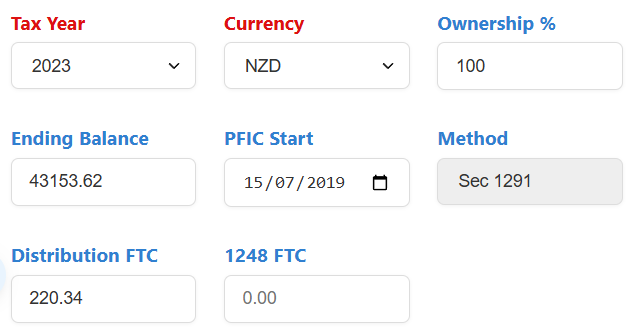
Required Parameters
- Tax Year: The reporting year (e.g., 2024).
- Currency: Original currency used in your CSV (e.g., NZD, AUD, EUR).
- Ownership %: 100% for individuals.
- PFIC Start Year: Year you became a U.S. resident after purchase.
5 Run PFIC Calculation
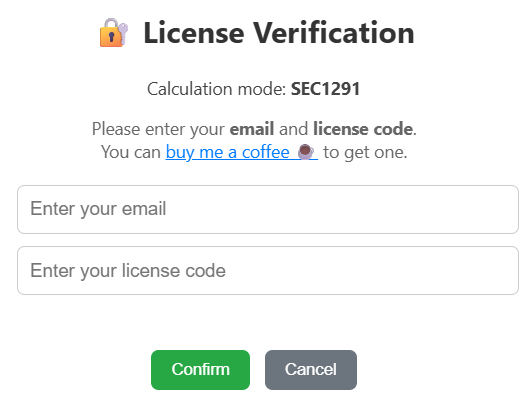
Click "Run PFIC Calculation" button. Enter your email and license code. The system performs mechanical computations: FIFO lot matching, excess distribution identification, and interest math.
6 Download Results
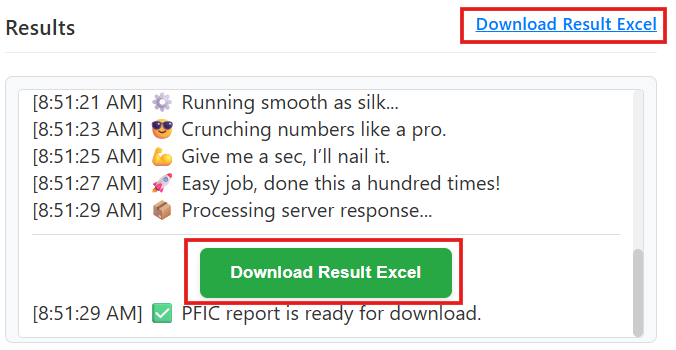
Retrieve the ⬇ Download Excel Results immediately. Results are not retrievable after refresh.
Excel Output Structure
- Summary_8621: Maps directly to Form 8621 lines.
- 16a_Summary: Line 16a attachment summary.
- PFIC WS: The audit trail (FIFO / FX / Interest).