
MTM (§1296) Form 8621 Calculation Guide
PFIC Calculator (8621calculator.com) — MTM (§1296) Form 8621 User Guide
This guide is for PFIC holdings reported under the mark-to-market rules of IRC §1296 for marketable stock. It explains how to prepare the MTM CSV (including year-end FMV data), map transaction categories, configure MTM-specific settings, run the calculation, and download Excel workpapers for Form 8621.
1. Who Should Use This MTM Guide
Use this guide if:
- The PFIC is marketable stock and a valid MTM (§1296) election has been made.
- You need to compute annual FMV-based ordinary income or loss for Form 8621 Part IV.
- You are tracking unreversed inclusions (UI) and basis adjustments over multiple years.
If there is no MTM or QEF election and you are under the default regime, please use the Section 1291 User Guide instead.
2. Prepare the CSV Transaction File (MTM)
Prepare one CSV UTF-8 file per PFIC.
Do not combine multiple PFIC holdings in a single file — this calculator is designed to process only one PFIC at
a time.
Required columns (must match exactly):
- Date — YYYY-MM-DD (Excel Date Format Guide)
- Details — text only; must not contain commas, quotes, or line breaks
- Units — numeric only; no thousands separators
-
Value —
numeric only; no thousands separators or currency symbols
(Total amount in the original currency)
| Date | Details | Units | Value |
|---|---|---|---|
| 2020-03-05 | Contribution | 10000 | 15000 |
| 2021-05-15 | Sold | -12.433 | -29.68 |
| 2022-03-12 | Reinvestment | 19.08384 | 22.83 |
| 2023-12-31 | fmv | 10068.813 | 20018.53 |
| 2024-12-31 | fmv | 10068.813 | 17079.56 |
Additional rules for MTM:
- MTM calculations require at least one FMV row for each tax year — from the first MTM year through the filing tax year.
- FMV rows must appear at the end of the transaction list. Include one December 31 FMV row per calendar year, plus the additional January 1 FMV row when the first-year scenario below applies.
- The Details field must be exactly: fmv (lowercase, no extra words, spaces, or punctuation).
-
Each year-end FMV row must include:
- Units — total units held at year-end
- Value — year-end FMV in the original currency
- Use the orange-highlighted rows in the sample table as your template.
Two important FMV input reminders
- First MTM election year after holding the PFIC as a non-U.S. taxpayer: If you held the PFIC in prior years while you were not a U.S. taxpayer and are making your first MTM election for the current tax year, the calculator requires an additional January 1 FMV row for that election year. Enter the date as YYYY-01-01, Details as fmv, Units as the total units held on January 1, and Value as their total FMV on that date in the original currency. This opening FMV row is in addition to the December 31 FMV row.
- All PFIC units sold during the tax year: If you sold the entire holding and have no units remaining at year-end, you must still include a December 31 FMV row for that year with Details = fmv, Units = 0, and Value = 0. Do not omit this row or leave either field blank. Keep the actual sale transactions in the CSV as well; the zero FMV row records the year-end balance.
Example FMV rows: first MTM election in 2024, followed by a full sale in 2025:
| Date | Details | Units | Value |
|---|---|---|---|
| 2024-01-01 | fmv | 1000 | 15000 |
| 2024-12-31 | fmv | 1000 | 18000 |
| 2025-12-31 | fmv | 0 | 0 |
The first row illustrates the January 1, 2024 opening FMV for the first MTM election year. The second row records the December 31, 2024 year-end holdings and FMV. Replace the sample units and values with your actual holdings and FMV on each date. The third row records a zero year-end balance after the holding is fully sold in 2025. This table shows FMV rows only, not a complete CSV: also include all actual transactions, including the 2025 sale.
- The calculator does not store or remember any data — every run must include full historical transactions from the first acquisition through the tax year.
- All Sale / Disposition transactions must use a negative Units value. Any positive Units is treated as an increase. Value may be entered as either positive or negative; its sign does not affect the calculation.
- If Units or Value is blank, fill it with 0.
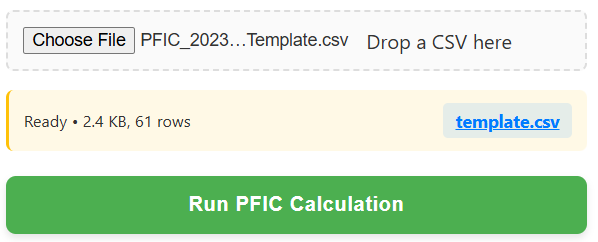
3. Upload File
Click the upload area or drag your CSV file into the box. After uploading, the panel on the right will switch to the Transaction Type Mapping section automatically.
Supported format: CSV (UTF-8 only). If starting from Excel, save as CSV before uploading.
4. Category Mapping
The calculator will attempt to auto-identify categories based on the Details column, but every row must be reviewed and confirmed.
Available categories:
- Purchase
- Distribution
- Reinvestment
- Sale
- Return of Capital
- Cost Base Adjustment
- Ignore (excluded from PFIC computation)
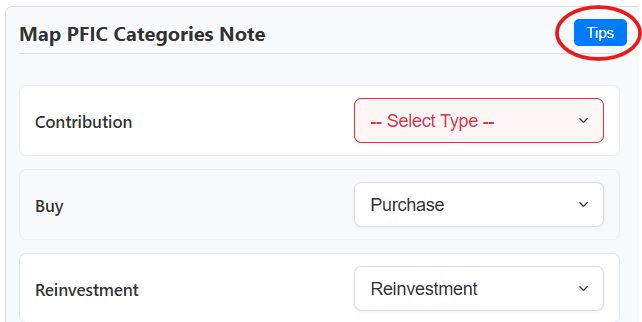
One-page classification summary (decision logic)
Use the rules below to choose the correct Type for each transaction. Correct classification is essential for both MTM adjustments and disposition calculations. This calculator uses FIFO as its lot-matching method.
| Units | Value | Description (what it says on the statement) | Type |
|---|---|---|---|
| > 0 | > 0 | Buy / Purchase / Subscription / Contribution | Purchase |
| > 0 | Any | DRIP / Reinvest / Reinvestment / Dividend reinvested | Reinvestment |
| < 0 | Any | Sell / Sale / Redemption / Switch-out | Sale |
| = 0 | > 0 | Dividend / Distribution / Interest | Distribution |
| = 0 | Any | ROC / Return of Capital | Return of Capital |
| = 0 | Any | Basis adjustment (e.g. prior-year QEF / MTM adjustment) | Cost Base Adjustment |
| Any | Any | Fees / Charges / NAV adjustment / Internal fund tax | Ignore |
Special Cases — “Ignore” and Manual Mapping View Ignore Classification Guide →
Entries marked with
-- Select Type --
must be manually mapped.
All other auto-identified categories must be reviewed and confirmed
item by item — only accurate categorization will produce accurate calculations.
Any transaction marked as Ignore is excluded entirely from the calculator. Ignore items must not affect MTM income, cost basis, or Form 8621 amounts.
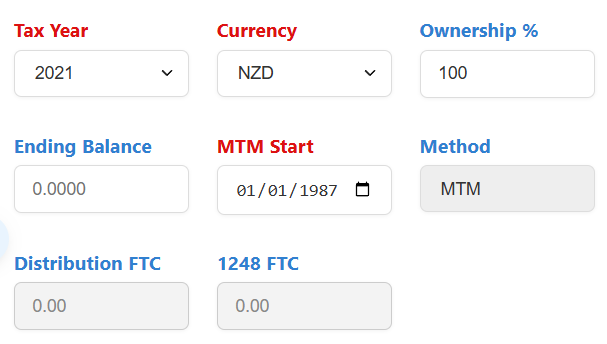
5. Configure MTM Settings
When the uploaded CSV file contains FMV rows, the calculator automatically switches to MTM (§1296).
- Tax Year — must be selected.
- Currency — must be selected.
- Ownership % — percent held by the owner.
- MTM Start — required. Select the first tax year of MTM treatment.
When transitioning from §1291 treatment to MTM (§1296), special first-year transition rules may apply, including a deemed disposition under §1291.
PFIC §1291→MTM purge transition guide
6. Run MTM (§1296) Calculation
Once categories are mapped and settings are confirmed, click Run PFIC Calculation.
Before running, check the two FMV input reminders: include the January 1 FMV for the first-year scenario described above, and a December 31 FMV row with Units = 0 and Value = 0 if you have fully sold the holding by year-end.
7. License Verification
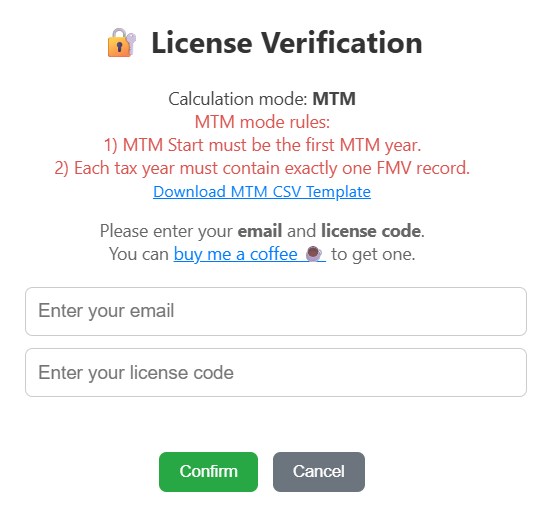
Enter your email and license code. The engine will not start until validated.
If you don't have a license code, purchase one securely at Pricing (US$10 per PFIC). Your license code will be generated and delivered to your email instantly.
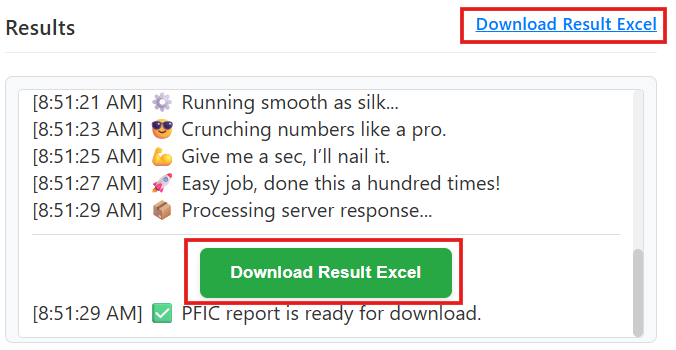
8. Download Excel Results
Download immediately after calculation. No history is stored.
9. MTM Output Sheets & Sample Workpapers
B. MTM (§1296) Outputs
- MTM_Calculations — annual FMV and MTM calculations (Lines 10a–12).
- 8621 MTM Filing Example — Part I, II, and IV mock-up.
- CCH_1.21_Additional — Part 1 fund data.
- CCH_6.2_ElectionC — Section 1296 MTM election worksheet.
- CCH_6.3_Sale1296 — CCH worksheet for MTM-related sales.
- Other IRS tax forms (1040, Sch 1, Sch D, etc.)